How to Localize Your iOS App in Xcode
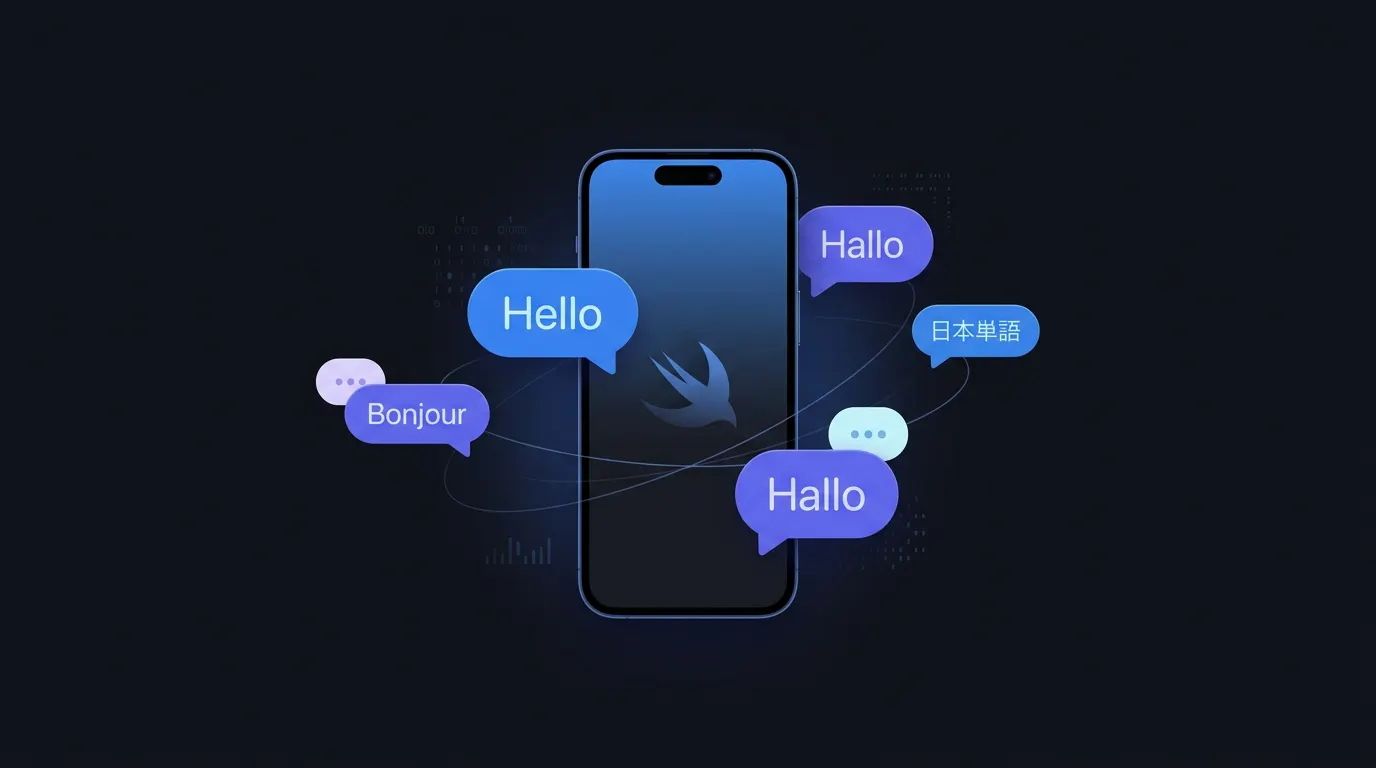
iOS localization is the process of adapting your app's text, images, and formatting for different languages using Xcode's built-in tools. Apps that support multiple languages see 128% more downloads per country on average. This guide covers the complete workflow - from setting up your Xcode project with .strings files to testing translations on a real device.
Before You Start
Make sure you're using NSLocalizedString (or String(localized:) in iOS 16+) consistently throughout your codebase. Hardcoded strings are the #1 cause of missed translations.
Step-by-step localization workflow
Enable localization in your Xcode project
Open your project settings → Info tab → Localizations section. Click '+' to add each language.
Extract localizable strings
Use Product → Export Localizations to generate XLIFF files, or use LocaleKit to auto-detect all localizable strings.
Create your Localizable.strings files
For each language, create a Localizable.strings file in the corresponding .lproj directory.
Translate your strings
Send the exported files to translators or use LocaleKit's built-in translation engine.
Test on device with different locales
In Xcode, go to Product → Scheme → Edit Scheme → Run → Options → App Language.
/* Welcome screen */
"welcome_title" = "Welcome to MyApp";
"welcome_subtitle" = "The best way to get things done";

/* Settings */
"settings_title" = "Settings";
"settings_language" = "Language";
Using NSLocalizedString in Swift
Every user-facing string should go through NSLocalizedString. This function looks up the key in your Localizable.strings file and returns the translated value.
import SwiftUI

struct WelcomeView: View {
    var body: some View {
        VStack(spacing: 16) {
            Text(NSLocalizedString("welcome_title", comment: "Main welcome heading"))
                .font(.largeTitle)
            Text(NSLocalizedString("welcome_subtitle", comment: "Welcome subheading"))
                .font(.subheadline)
        }
    }
}iOS 16+ Tip
In iOS 16+, you can use String(localized:) instead of NSLocalizedString for a cleaner API with native string interpolation support.
Localization isn't just translation - it's making your app feel native in every language and region.
Frequently Asked Questions
Do I need a separate Xcode target for each language?
No. Xcode handles localization through .lproj resource directories. A single target supports all languages.
How do I handle plurals in iOS localization?
Use .stringsdict files for pluralization rules. Each language has different plural categories (zero, one, two, few, many, other).
Can I preview translations without changing my device language?
Yes! Edit your scheme's Run configuration and set App Language to the locale you want to preview.
Stop managing translation files manually
LocaleKit detects, translates, and syncs all your localization files — iOS, Android, Flutter, and more. Everything runs locally on your machine.
Privacy-first. No cloud required.